 ProblemPick
Mouse Pad Keeps Sliding? Try These Fixes
First clean and dry the desk and the pad base. If the pad still moves, replace a worn base with a rubber-backed cloth pad, choose a full-width desk mat for more contact, use a rigid pad with silicone feet on a slightly uneven surface, or add a thin reusable nonslip underlay beneath a pad you already like.
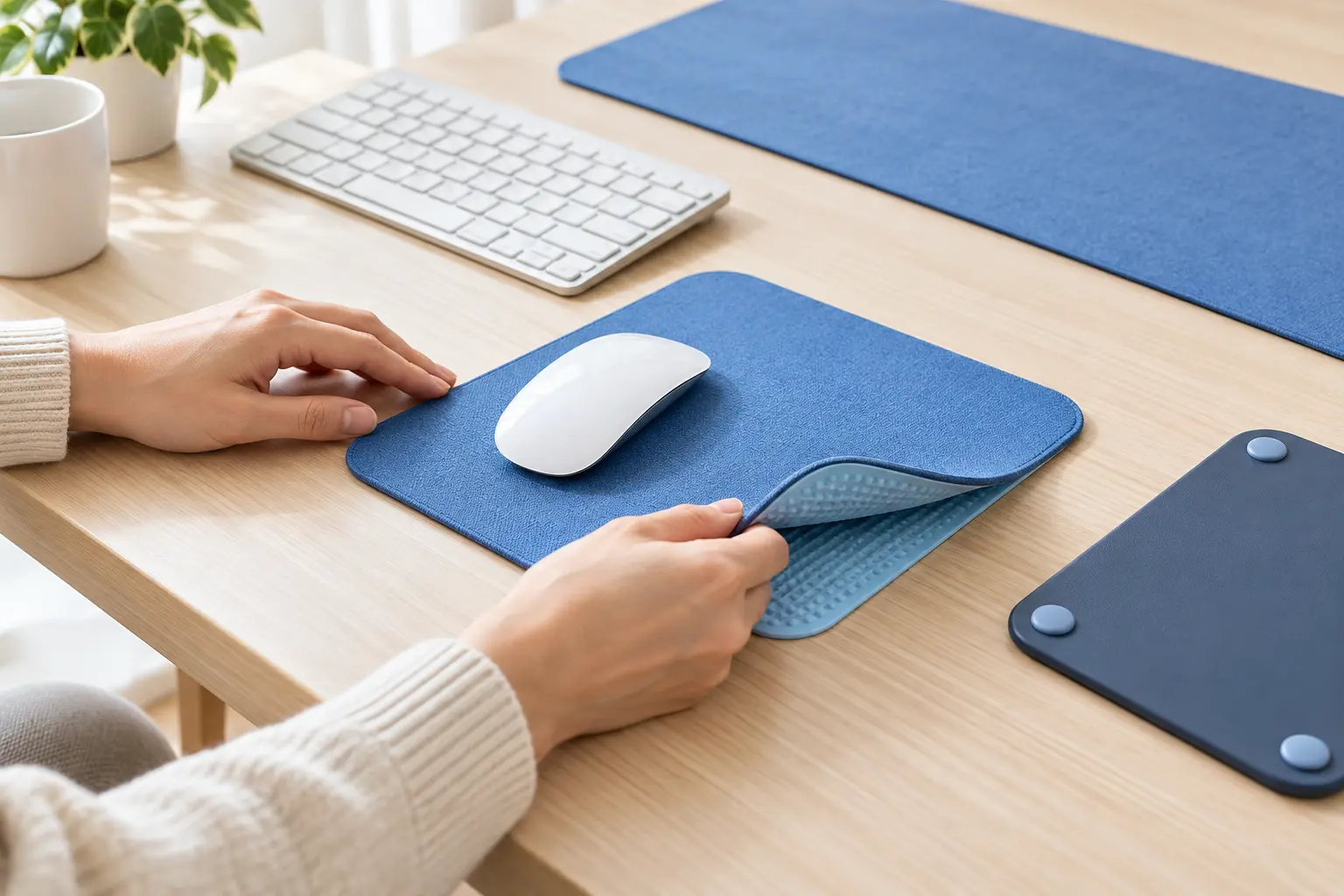
Protect the desk finish: Follow the desk and pad care instructions. Test any cleaner or underlay on an inconspicuous area, keep moisture away from electronics and do not use permanent tape or harsh solvent on an unknown finish.
Why does the mouse pad move across the desk?
Turn the pad over and look at the base. Fine dust and skin oils reduce contact, while old foam or rubber can become hard, shiny or cracked. A curled corner leaves less material touching the desk and can be pushed by the wrist on every movement.
Then inspect the desk. Glossy laminate, sealed wood, glass and textured surfaces interact differently with rubber, silicone and mesh. A base that grips one desk may move on another. Cleaning residue can also leave a slick film even when the surface looks clean.
Finally, watch the whole setup. A mouse cable pulled tight from behind a monitor can tug a small pad forward. The keyboard can nudge its edge, and a pad partly hanging over the desk or keyboard tray has too little flat support. Fix those causes before buying extra grip.
What should you check before buying a nonslip mouse pad?
Choose dimensions from actual movement, not only from the desk size. A pad should lie fully supported without covering ventilation slots, built-in controls or openings used for cables.
Which products stop a mouse pad from sliding?
Rubber-backed cloth mouse pad
Best for most dry, smooth desks when the current base has become hard, dusty or curledA fresh textured rubber base spreads grip across the whole pad while the cloth surface remains familiar for everyday work and gaming. It is the simplest replacement when the old pad itself is worn rather than the desk being unusually slippery.
- Benefits
- Grip is built into the full underside
- Many sizes fit compact or shared desks
- Soft surface rolls or stores easily
- Check before buying
- Measure the pointer area you actually use and the free space beside the keyboard. Check the base material, stitched or sealed edges, pad thickness, washable-care instructions and whether the surface suits the mouse sensor and preferred movement speed.
- Possible drawback
- Rubber can lose grip as it collects dust or ages, and some bases may leave temporary marks on sensitive finishes. A very thin pad can still curl or move when the desk edge catches it.
Full-width desk mat with grippy base
Best when the keyboard and mouse both move or a larger contact area would be more stableA wide desk mat uses more surface area and can support the keyboard, mouse and wrists as one zone. The extra footprint helps resist small pulls from the mouse cable and keeps the keyboard from pushing into a separate pad.
- Benefits
- Large base creates more contact with the desk
- Keeps keyboard and pointer in one defined zone
- Can protect a broad work surface from light daily wear
- Check before buying
- Measure the entire usable width and depth, including monitor feet, laptop stands and any desk curve. Check mat thickness, edge finish, cleaning method, cable clearance and whether the keyboard remains level on the same surface.
- Possible drawback
- It occupies more desk area, takes longer to dry after cleaning and may trap crumbs or moisture beneath it. An oversized mat can cover vents, desk controls or cable openings.
Rigid mouse pad with silicone feet
Best when a flat, consistent surface is needed on a slightly uneven desk or soft table coveringA rigid board does not bunch or curl, and separate silicone feet concentrate grip at stable contact points. It can bridge minor texture in the desk surface while giving the mouse a consistent hard glide.
- Benefits
- Stays flat instead of curling
- Feet can grip through light surface texture
- Hard top is easy to wipe
- Check before buying
- Confirm the pad fits without rocking and that every foot touches the desk. Check edge shape, overall weight, replaceable feet, surface compatibility with the mouse sensor and whether the harder top creates more pointer noise than you want.
- Possible drawback
- A rigid pad is less portable, may sound louder and can slide if only two feet make contact. Grit beneath a hard foot can mark a delicate desk, so both surfaces need regular cleaning.
Reusable nonslip underlay
Best when the current mouse pad surface is still good but its underside no longer gripsA thin washable silicone or mesh underlay adds friction between the existing pad and desk without permanently attaching either one. It is a useful retrofit when replacing a favorite pad would be wasteful.
- Benefits
- Keeps a usable mouse pad in service
- Removes for cleaning or desk changes
- No permanent adhesive is required
- Check before buying
- Measure slightly inside the pad edges so the underlay stays hidden. Check thickness, washability, heat limits and compatibility with the desktop finish. Choose a single flat layer rather than stacking several pieces that create a ridge.
- Possible drawback
- An underlay adds another layer to align and clean. Some mesh materials can imprint on soft finishes, and a layer that is too thick may create a raised edge that catches the wrist or mouse cable.
ProblemPick compares product types, not current offers. Amazon shows products, prices, ratings, availability and seller terms only after you choose to open a link.
Quick comparison: which mouse-pad solution fits?
| Product type | Best use | Main limitation |
|---|---|---|
| Rubber-backed cloth mouse pad | Best for most dry, smooth desks when the current base has become hard, dusty or curled | Rubber can lose grip as it collects dust or ages, and some bases may leave temporary marks on sensitive finishes. A very thin pad can still curl or move when the desk edge catches it. |
| Full-width desk mat with grippy base | Best when the keyboard and mouse both move or a larger contact area would be more stable | It occupies more desk area, takes longer to dry after cleaning and may trap crumbs or moisture beneath it. An oversized mat can cover vents, desk controls or cable openings. |
| Rigid mouse pad with silicone feet | Best when a flat, consistent surface is needed on a slightly uneven desk or soft table covering | A rigid pad is less portable, may sound louder and can slide if only two feet make contact. Grit beneath a hard foot can mark a delicate desk, so both surfaces need regular cleaning. |
| Reusable nonslip underlay | Best when the current mouse pad surface is still good but its underside no longer grips | An underlay adds another layer to align and clean. Some mesh materials can imprint on soft finishes, and a layer that is too thick may create a raised edge that catches the wrist or mouse cable. |
Which option suits the desk surface and movement?
Is the current base shiny, cracked or permanently curled?
Replace the pad. An underlay may hide the symptom briefly, but it cannot restore a damaged base or flatten a separated layer.
Do both the keyboard and small pad move?
A wide desk mat can place both devices on one grippy base. Measure the entire work zone and keep desk vents, controls and cable holes clear.
Is the desktop slightly uneven or covered with soft material?
A rigid pad with several silicone feet can create a flatter pointer surface. Verify that every foot contacts the desk so the pad does not rock.
Do you want to keep a favorite pad?
Add one thin, washable underlay cut slightly smaller than the pad. Avoid several overlapping pieces because their edges can create bumps.
Does only a wired mouse pull the pad?
Give the cable more slack or guide it from a stable point before replacing the pad. Grip cannot fully solve a cable that remains under tension.
How do you set up a mouse pad so it stays put?
For a broader compact-workspace change, compare our small laptop desk upgrades. If loose objects and papers crowd the pointer area, start with the desk organization guide. Browse more Tech and Home guides.
Nonslip mouse-pad buying checklist
Mouse-pad grip FAQs
Why does my mouse pad keep sliding?
Dust, skin oils, a hardened or curled base, a very smooth desktop, an undersized pad or repeated cable pull can reduce grip. Clean and dry both surfaces, then watch whether the whole pad moves or only one corner lifts.
How do I stop a mouse pad moving without adhesive?
Use a clean rubber-backed pad, a larger desk mat, a rigid pad with silicone feet or a removable nonslip underlay. Match the option to the desk finish and avoid permanent tape unless the surface maker explicitly allows it.
Can I put shelf liner under a mouse pad?
Only if the material is intended for the desktop finish, lies completely flat and does not transfer color or texture. A purpose-made washable nonslip underlay is easier to size and evaluate for repeated desk contact.
Does a larger desk mat grip better than a small mouse pad?
It often has more contact area and can be held partly by the keyboard, but size alone does not guarantee grip. The underside material, cleanliness, flatness and desk finish still matter.
Should I wash a slipping mouse pad?
Follow its care label. Dust and oils can reduce grip, but soaking, heat or aggressive cleaners can damage the base or separate its layers. Let the pad and desk dry fully before use.
Is pad movement the same as cursor drift?
No. This guide addresses the physical pad moving on the desk. If the pad stays still but the on-screen pointer moves unexpectedly, check the mouse sensor, surface compatibility, cable or wireless connection and device settings.