 ProblemPick
Simple Products That Can Improve Video Calls From Home
Test the call before buying anything, then fix the weakest part: use a USB headset for unclear voice, an external webcam for poor placement or picture, a diffused light for backlighting, a stable stand for camera height, or Ethernet when Wi-Fi causes repeated freezes.
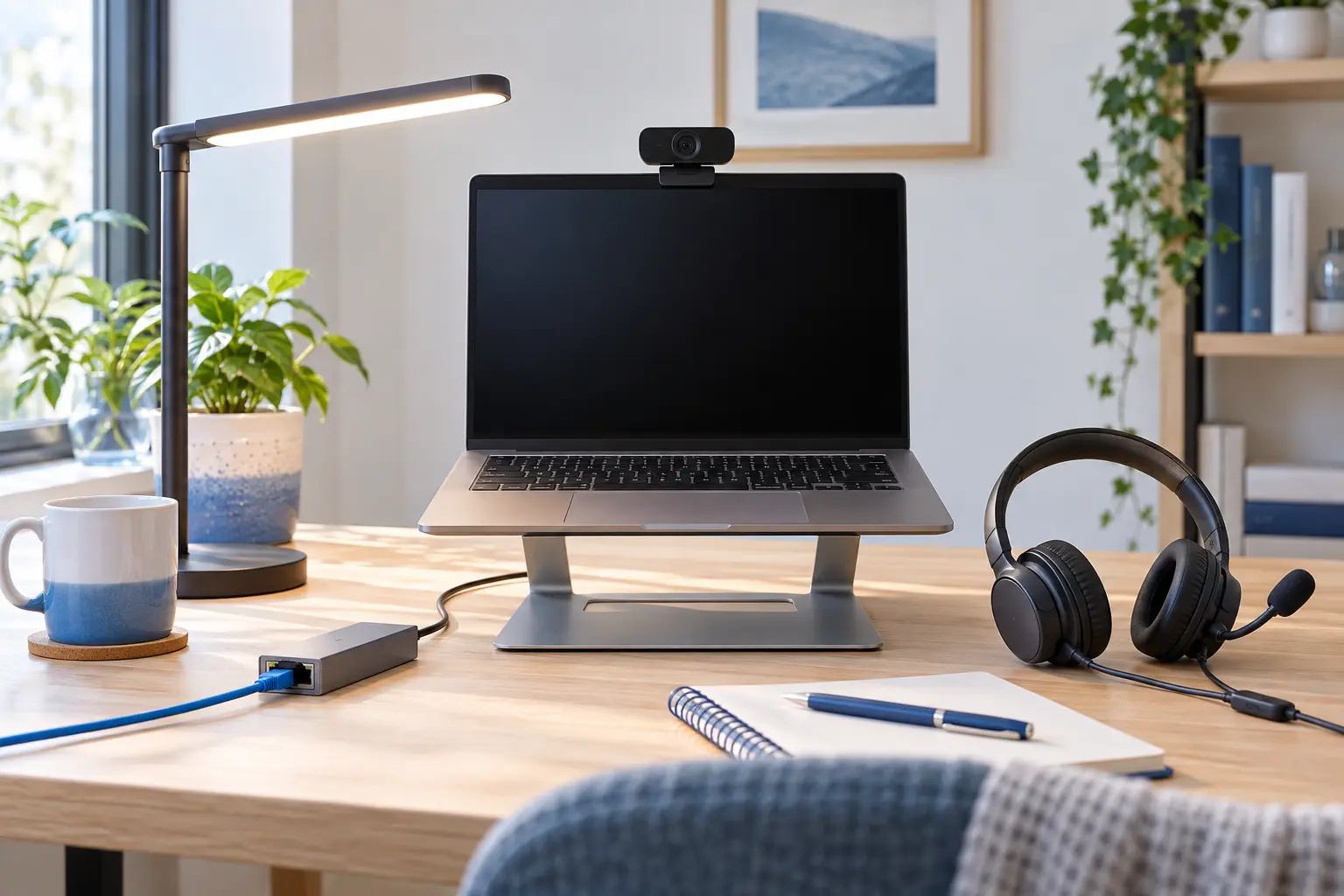
Privacy and setup: Check what the camera shows before every call, close private material and use a physical shutter or camera-off setting when not in use. Keep lights stable and route every cable away from walking paths. Follow the computer, accessory, router and meeting-platform instructions.
How do you know what is hurting your video calls?
Make one short test call with the same room, chair, laptop and network you normally use. Listen to your own recording or ask a trusted participant about five separate things: speech clarity, picture detail, face lighting, camera angle and freezes. Change only one item, then repeat the same test. That separates a real improvement from a more expensive-looking desk.
Current platform guidance supports this test-first approach. Zoom's official test meeting checks video, microphone and speakers before a meeting. Google Meet's quality troubleshooting recommends selecting the correct devices and, when audio or video is poor, trying a headset with a microphone. Microsoft Teams also provides noise suppression, so test the app's built-in setting before buying hardware for background noise.
Which products solve five different video-call problems?
USB headset with a boom microphone
Best when other people hear room echo, keyboard noise or an inconsistent voice levelA microphone held a consistent short distance from your mouth usually gives the meeting app a cleaner source than a laptop microphone across the desk. Headphones also prevent the laptop speakers from feeding sound back into the microphone.
- Benefits
- Keeps microphone distance more consistent
- Combines listening and speaking in one device
- Physical mute controls can be easier to verify
- Check before buying
- Confirm USB-A, USB-C or adapter compatibility, operating-system support, cable reach, mute controls and whether the meeting app recognizes both the microphone and headphones. Compare weight, ear-cup style and whether the boom can sit beside—not in front of—your mouth.
- Possible drawback
- A headset adds pressure, a visible boom and another cable or battery. Wireless models add pairing and charging; a good built-in microphone may already be enough in a quiet room.
External webcam
Best when the built-in camera is soft, poorly placed or cannot frame you at the right heightA separate webcam can sit at the top of the screen you actually look at and may offer a more useful field of view, focus behavior or low-light handling than an older laptop camera. It does not improve sound or internet quality.
- Benefits
- Places the camera on the main screen
- Can improve framing flexibility
- Moves easily between compatible displays
- Check before buying
- Check operating-system and meeting-app support, connection type, mounting range, field of view, focus mode, privacy shutter and the computer's available ports. Verify that the mount is stable on your display and does not cover pixels or vents.
- Possible drawback
- A wide lens may reveal more room than intended, and a high-resolution camera cannot compensate for poor light or a weak connection. Extra software and USB bandwidth can add complexity.
Small diffused video light
Best when a window or ceiling light leaves your face dark, uneven or strongly backlitA soft light placed slightly above and to one side of the camera can balance the face without lighting the whole room. Diffusion matters more than maximum brightness at close distance; start low and check the preview.
- Benefits
- Targets the lighting problem directly
- Adjustable output works across day and evening
- A compact light can share a small desk
- Check before buying
- Compare brightness adjustment, diffusion, color-temperature range, power method, stable base or clamp and enough reach to stay outside the screen. Check reflections in glasses and screens, cable routing and heat-clearance instructions.
- Possible drawback
- A bare or very small bright source can cause glare and discomfort. It needs a stable position and power route, and it cannot fix a low camera angle or noisy microphone.
Stable laptop stand or camera-height mount
Best when the camera looks sharply upward or downward even though picture quality is otherwise acceptableRaising the laptop or camera closer to eye level improves framing without replacing the camera. For longer work, a raised laptop usually needs a separate keyboard and pointing device so the screen and controls can be positioned independently.
- Benefits
- Corrects framing with existing equipment
- Can free a small area below the laptop
- Foldable models suit shared tables
- Check before buying
- Measure the laptop or camera, stand footprint, load rating and the height needed from your seated position. Check front stops, non-slip surfaces, ventilation, hinge stability and whether the camera remains centered after the screen opens.
- Possible drawback
- A high or narrow stand can wobble, and raising the laptop makes its keyboard less convenient. This overlaps with general desk setup, so buy it only when camera height is the verified call problem.
USB Ethernet adapter and cable
Best when calls repeatedly freeze or drop on Wi-Fi and the router has a usable Ethernet portA wired connection removes the laptop's wireless hop and can make a variable local connection more predictable. It helps only when Wi-Fi is the weak link; it cannot repair a slow internet service, overloaded computer, meeting-platform issue or damaged router port.
- Benefits
- Bypasses unstable local Wi-Fi
- Needs no battery
- Easy to compare with the existing connection
- Check before buying
- Confirm the laptop port, adapter operating-system support, Ethernet speed, cable category and the router's available LAN port. Measure a route that stays against the wall or desk edge and never crosses a walking path. Test the connection before the next important call.
- Possible drawback
- It uses a laptop port and adds a cable. A poor route creates clutter or a trip hazard, while an adapter provides no benefit if the real issue is the internet service or device performance.
ProblemPick compares product types, not current offers. Amazon shows products, prices, ratings, availability and seller terms only after you choose to open a link.
Quick comparison: which upgrade comes first?
| Product type | Best use | Main limitation |
|---|---|---|
| USB headset with a boom microphone | Best when other people hear room echo, keyboard noise or an inconsistent voice level | A headset adds pressure, a visible boom and another cable or battery. Wireless models add pairing and charging; a good built-in microphone may already be enough in a quiet room. |
| External webcam | Best when the built-in camera is soft, poorly placed or cannot frame you at the right height | A wide lens may reveal more room than intended, and a high-resolution camera cannot compensate for poor light or a weak connection. Extra software and USB bandwidth can add complexity. |
| Small diffused video light | Best when a window or ceiling light leaves your face dark, uneven or strongly backlit | A bare or very small bright source can cause glare and discomfort. It needs a stable position and power route, and it cannot fix a low camera angle or noisy microphone. |
| Stable laptop stand or camera-height mount | Best when the camera looks sharply upward or downward even though picture quality is otherwise acceptable | A high or narrow stand can wobble, and raising the laptop makes its keyboard less convenient. This overlaps with general desk setup, so buy it only when camera height is the verified call problem. |
| USB Ethernet adapter and cable | Best when calls repeatedly freeze or drop on Wi-Fi and the router has a usable Ethernet port | It uses a laptop port and adds a cable. A poor route creates clutter or a trip hazard, while an adapter provides no benefit if the real issue is the internet service or device performance. |
Which video-call symptom points to which product?
People ask you to repeat yourself?
First select the correct microphone and try the app's noise control. If voice level and room echo remain inconsistent, compare a USB headset with a boom microphone. Keep the boom beside your mouth and record a test.
Your face is dark but the room looks bright?
Turn toward a window or place a small diffused light near camera height. Improve the light before replacing a working camera; more camera detail does not remove strong backlighting.
The picture is clear but the angle feels awkward?
Raise the laptop or mount the webcam on the screen you look at. Center the lens close to eye level, then verify that a raised laptop still has a stable stand and separate controls when needed.
The call freezes while local audio and picture look fine?
Test near the router, pause large transfers and compare Wi-Fi with a wired connection. Buy an Ethernet adapter only when that comparison shows the local wireless link is the weak point.
The camera stays soft after light and height are corrected?
Then compare an external webcam by compatibility, field of view, focus and privacy shutter. Do not buy by resolution alone; check the preview in the actual meeting app.
How should you set up and test a home video call?
If the desk itself is too small for the camera and controls, use the separate small laptop-desk guide. For trays, papers and a repeatable clear area, the desk organization guide stays focused on workspace order.
Home video-call buying checklist
Questions about improving home video calls
What should I improve first for better video calls?
Run a test call and listen to a recording or ask one trusted participant what fails most often. Fix voice clarity first when people cannot understand you, then connection stability, light, framing and finally camera detail. One verified improvement is more useful than buying a complete kit at once.
Is a headset better than a USB microphone for video meetings?
A headset is usually simpler in an untreated room because its microphone stays close and its headphones reduce speaker feedback. A desktop USB microphone can sound good, but distance, room echo, keyboard noise and stand placement matter more. Choose for the room and routine, not for studio-style appearance.
Do I need an external webcam if my laptop camera works?
Not automatically. Keep the built-in camera if the preview is clear enough after improving light and height. An external webcam is useful when placement, framing, focus or compatibility remains the specific limitation.
Where should a video-call light go?
Place a diffused light near camera height and slightly to one side, then start at low brightness. Avoid pointing a bare light straight into your eyes. Check the preview for glasses glare, harsh shadows and a bright window behind you.
Will Ethernet always improve a video call?
No. It can stabilize the link between your computer and router when Wi-Fi is the problem. It will not fix limited internet service, platform outages, an overloaded device or poor audio and camera settings.
How can I test a setup before an important meeting?
Select the exact camera, microphone and speaker in the meeting app, record or join a test meeting, and check from the normal seat. Then test mute, camera framing, lighting and the connection with the same accessories you plan to use.